Organization
An organization represents your company in Vaurd. It owns everything you create and forms the boundary for access.
An organization is the top-level container for everything you create: members, workspaces, sources, events, integrations, and flows. Each organization is isolated, so its resources are never visible to another organization.
Getting into an organization
At signup, Vaurd checks your email domain.
- If organizations exist for your domain, they are listed. You can:
- Request to join one: select Request. The request goes to that organization's admins for approval; you receive an email when it is approved. Access is pending until then.
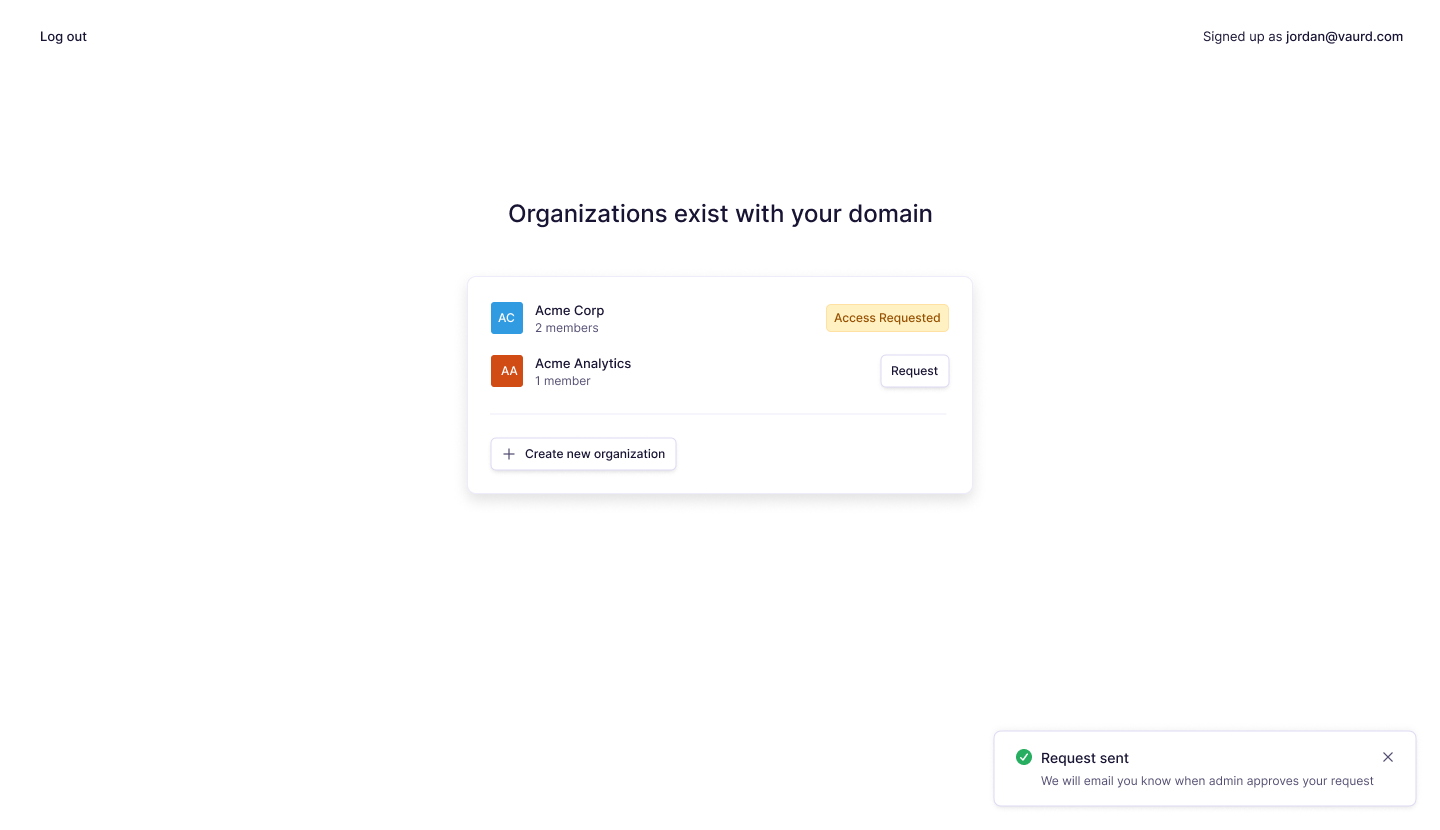
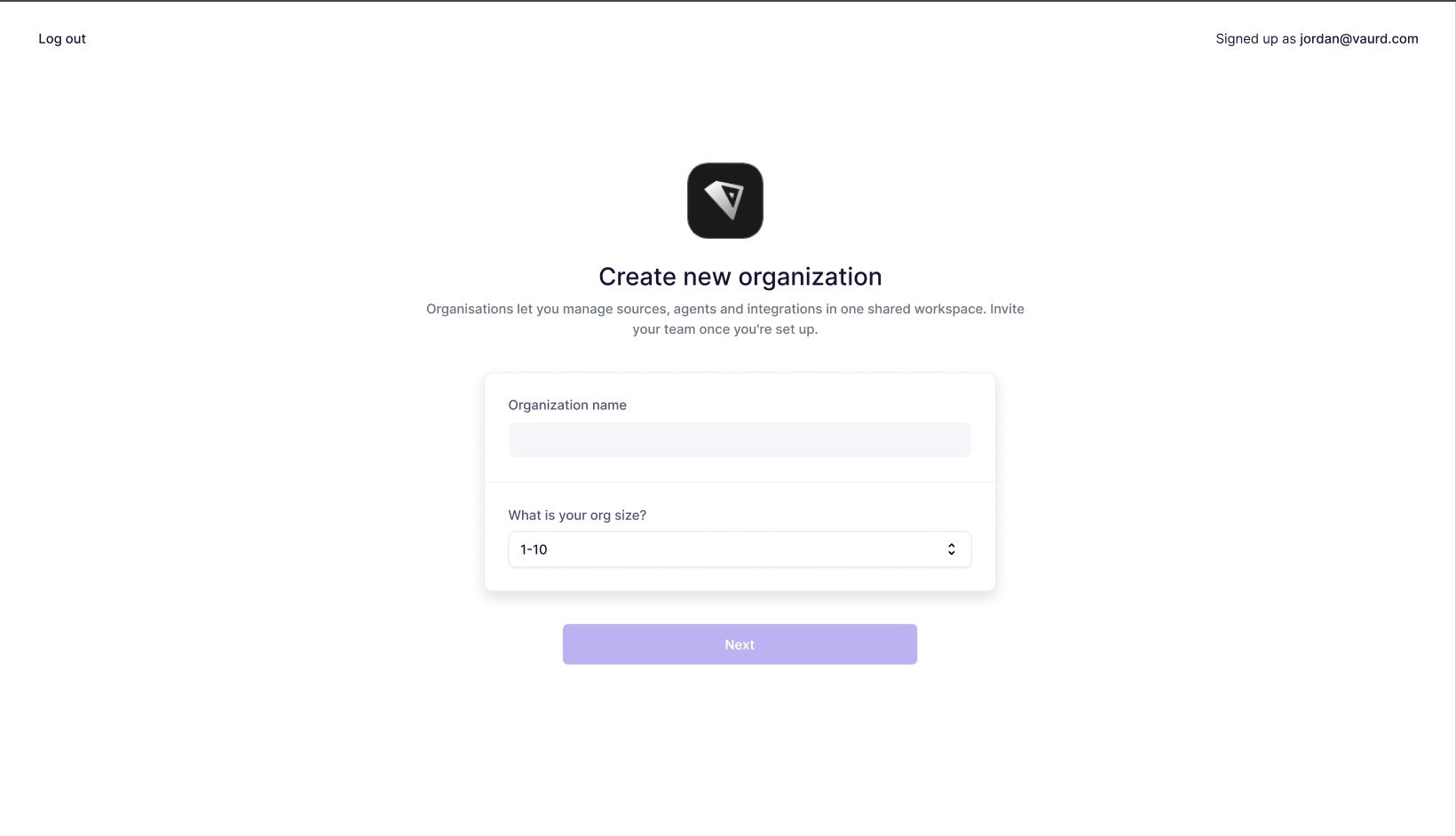
- Create your own: select Create new organization and complete the form.
- If no organization exists for your domain, you are taken directly to the create form.
To create an organization, provide:
The user who creates an organization becomes its Owner.
To add other people once you are in, see Team.
Switching organizations
You can belong to more than one organization. Use the organization menu in the top-left to switch between the organizations you're part of, or to create a new one.
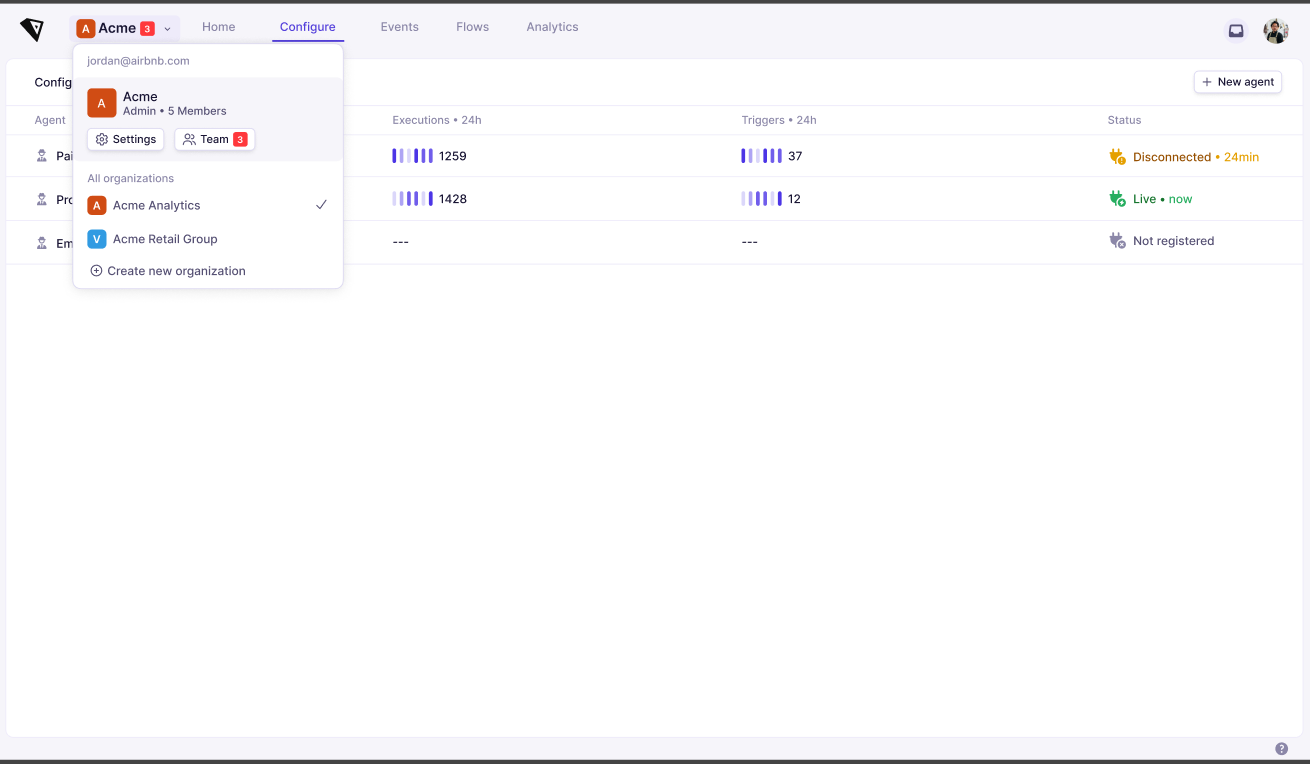
Your roles are per organization, so the same account can be an Owner in one and a Member in another.
Organization settings
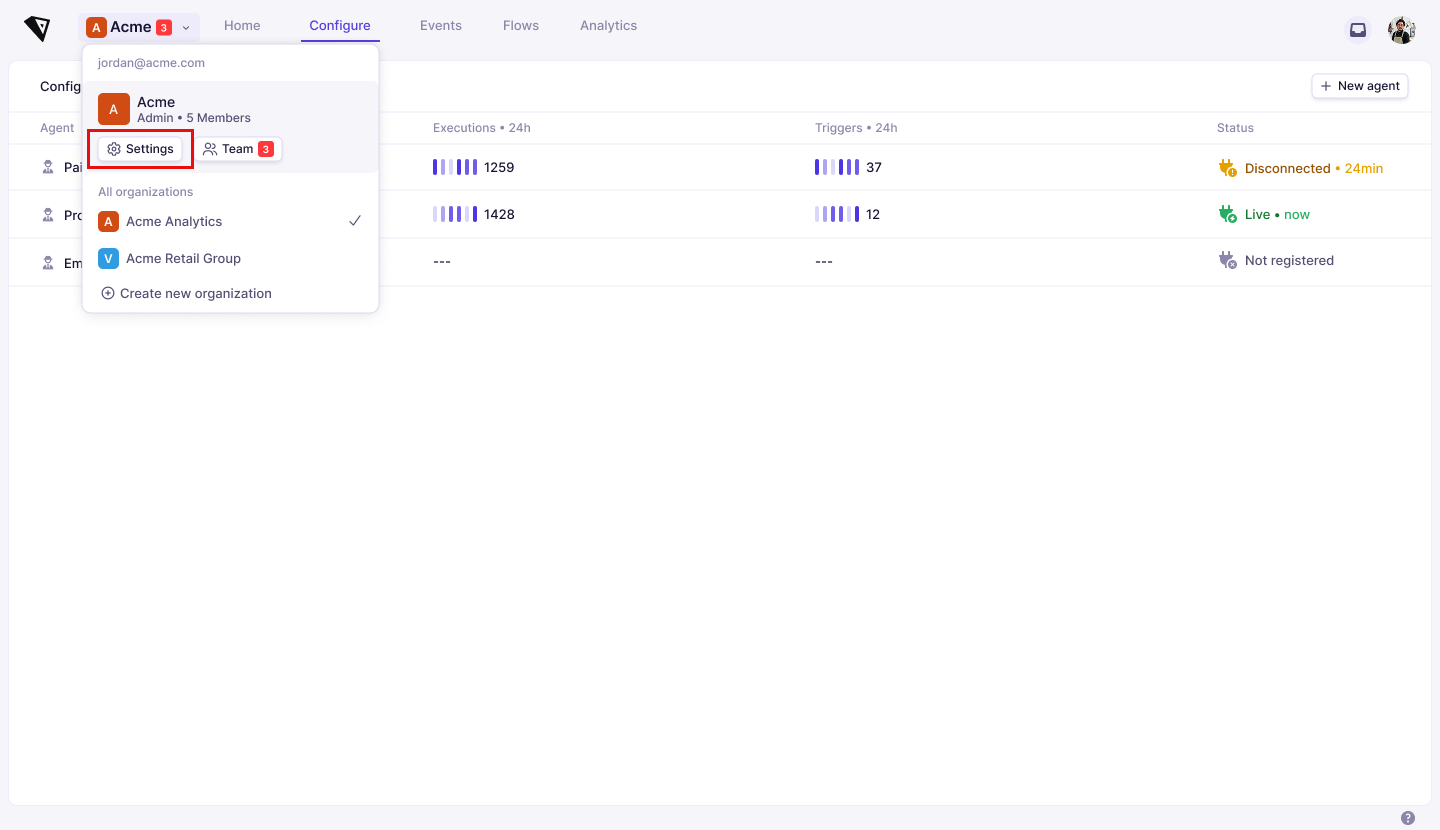
Open the organization menu in the top-left and select Settings → Organization. Every member can open this page. What you can change on it depends on your organization role, and the rest of this page covers each of those settings.
Renaming the organization
Owners and Admins see an editable Name field. Change it and confirm to save. The name can be up to 50 characters and cannot be empty.
The new name appears straight away in the organization menu and in the organization list. Everyone in the organization sees it.
Members who are neither an Owner nor an Admin see the organization's details read-only.
Other organizations on your domain
Below the organization details is a list of the other organizations registered to your email domain. Select Request next to one to ask its Owners and Admins for access, or Withdraw Request to take a pending request back.
Your request appears on that organization's Pending Requests tab, where an Owner or Admin approves or denies it. See Team.
Leaving an organization
Under Danger Zone, select Leave organization and confirm. You lose access to the organization and its workspaces, and you are returned to your remaining organizations.
If you are the only Owner, assign the Owner role to someone else first. An organization must always keep at least one Owner.
Deleting an organization
Under Danger Zone, select Delete organization and confirm. This option is only shown to Owners and Admins.
Its members, workspaces, flows, events, sources, integrations, and agents all go with it. Deleting cannot be undone.